
Request New Password Page
To start the process of requesting a new password, click the "Forgot Password" link in the top menu under "Log in":

You will be taken to a page where you can request a new password:
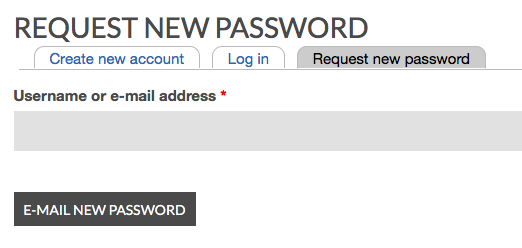
You may type EITHER your USERNAME OR the EMAIL address that is stored in your site account's user profile. Then, click the "E-mail new password" button to tell the system to send a temporary login link to your registered email address.
If you don't recall your site username or which email address is stored in your user profile, please contact the CARTA Administrators for assistance.
Request New Password EMail
Within a minute or two, you should receive an email containing a special LINK that will enable you to log into your site account within 24 hours of receiving the email. Note that this email does NOT contain a new password as sending passwords via email is not secure. Instead, you must click (or otherwise open) the special link that is included in the email message.
The email subject will be "Replacement login information for
If you don't receive an email within 5 minutes, please contact the CARTA Administrators for assistance.
After you click the one-time link, you will be taken to a form to choose a new password. Note: if you see an "Access Denied" message when you click on the on one-time login link from your email, you are already logged into the site.
In the "choose a new password" form, enter a new password into the "password" AND "confirm password" fields. Then click the "Save and Log in as <Your Name>" button. You've now set a new password AND should also be logged into your account.


